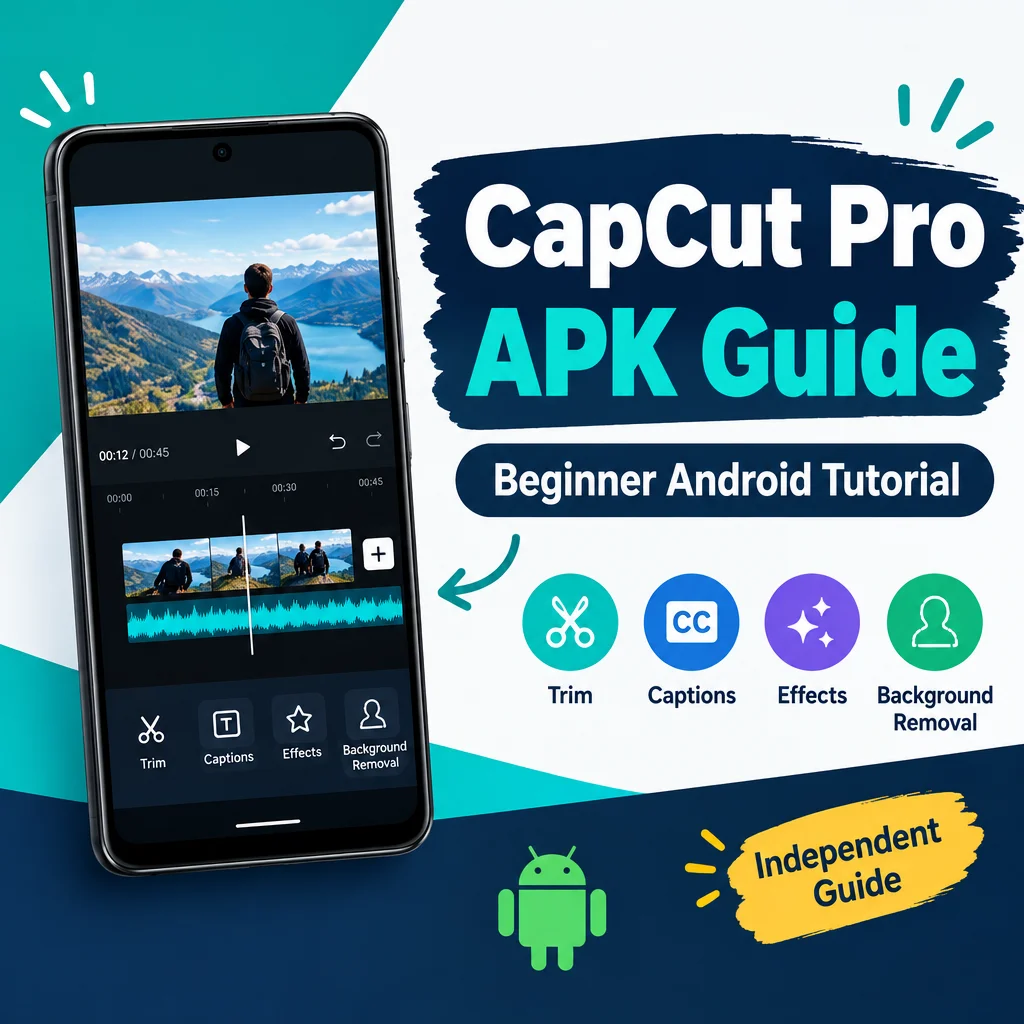
Top Features of Capcut Pro APK You Should Know
October 20, 2026 (3 weeks ago)
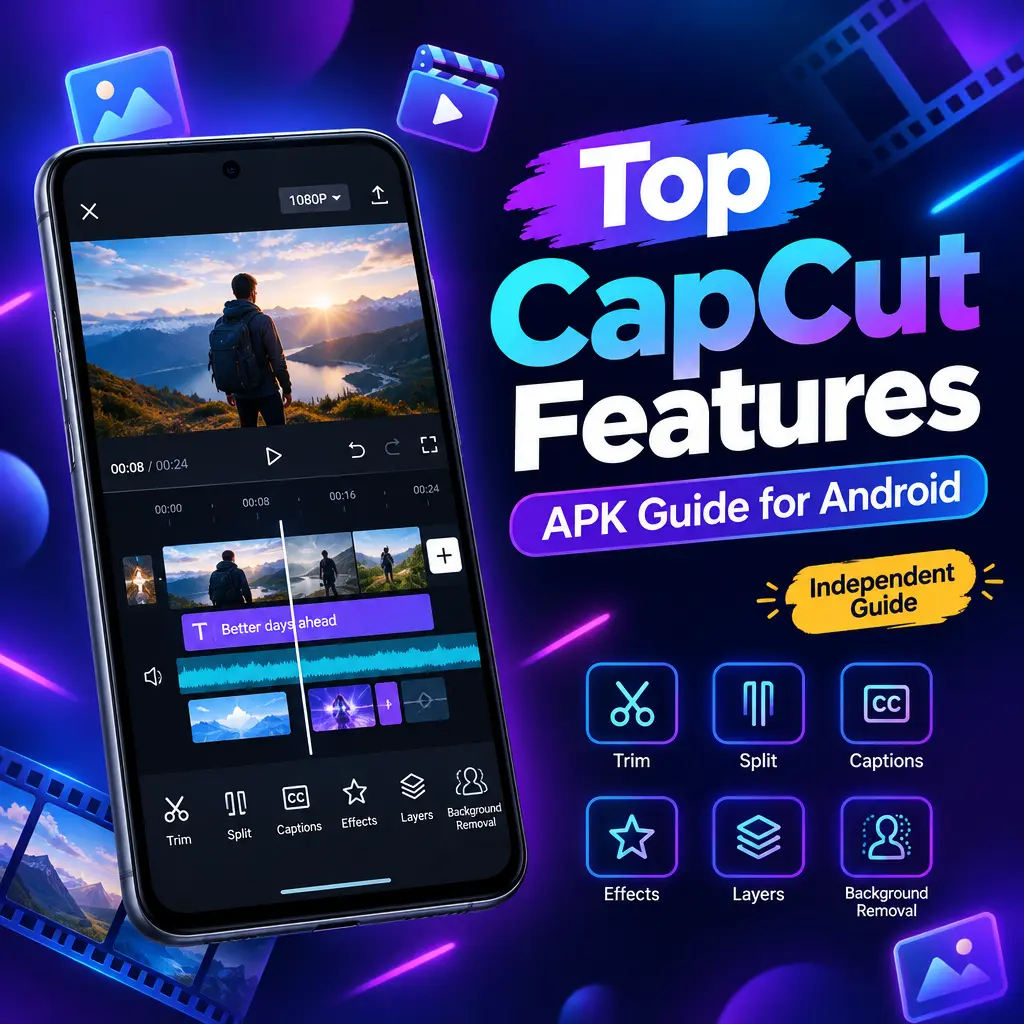
CapCut is popular because it makes video editing feel simple without removing the creative tools people need for social media, short films, tutorials, reels, and personal projects. When people search for “CapCut Pro APK,” they are usually looking for the Android package version of CapCut and information about Pro-level editing features. It is important to understand that an APK is for Android only, and Pro features in the official CapCut app require the correct membership or plan. This guide is an independent feature overview, not an official CapCut, ByteDance, publisher, distributor, or security lab page.
Below are the top CapCut editing features worth knowing, especially if you want more control over your videos. Feature availability can depend on your device, region, platform, app version, and plan.
1. Easy Trimming and Splitting
One of CapCut’s strongest points is how easy it is to cut video clips. You can trim the start or end of a clip, split it into smaller sections, remove unwanted parts, and rearrange the timeline. This makes it useful for quick edits as well as more detailed projects.
- Cut out mistakes from recorded videos
- Remove pauses from talking clips
- Split long videos into short social media clips
- Rearrange scenes for better storytelling
The timeline style is simple enough for beginners, but it still gives creators the control they need to shape a video properly. This is especially helpful for vloggers, educators, and social media creators who need fast editing without complicated software.
2. Multitrack Editing for More Creative Control
Multitrack editing lets you work with more than one layer of video, audio, text, stickers, and effects. Instead of editing one clip at a time, you can build a complete video scene with several parts working together.
- Add a main video clip to the timeline.
- Place text, captions, stickers, or overlays above it.
- Add background music or voice-over below it.
- Adjust timing so every element appears at the right moment.
This is useful for tutorials, reaction videos, product videos, gaming clips, and branded content. For example, you can place a talking video on one layer, add screen recording footage on another, and use text labels to explain each step.
3. Captions and Text Tools
Captions are a major part of modern video editing. Many viewers watch videos without sound, especially on social platforms. CapCut includes caption and text tools that help make content easier to understand and more engaging.
- Add manual text for titles and labels
- Create subtitle-style captions
- Change fonts, colors, sizes, and placement
- Use animated text styles where available
Some caption features, such as auto-caption tools, may depend on platform, region, language support, or plan. Still, even basic text editing can improve your video by highlighting key points, adding context, or guiding the viewer through the story.
4. Effects and Filters
Effects and filters are among the most attractive parts of CapCut. They help change the mood of a video, create a specific style, or make simple clips look more polished. You can use visual effects for transitions, motion, light leaks, blur, shake, glow, and other creative looks.
Filters are useful when you want a consistent color style. For example, a travel video can use warm tones, a fitness clip can use strong contrast, and a beauty video can use soft lighting effects. The right effect should support the video, not distract from it.
- Use filters to create a consistent color theme
- Add effects to highlight key moments
- Adjust intensity where supported
- Combine effects with music beats for short-form videos
5. Transitions Between Clips
Transitions help clips move smoothly from one scene to another. CapCut includes different transition styles, such as fades, slides, zooms, swipes, and camera-style movements. These can make your video feel more connected and professional when used carefully.
- Use simple fades for clean storytelling.
- Use fast transitions for energetic social videos.
- Match transition timing with music beats.
- Avoid using too many different styles in one video.
Transitions are best when they improve flow. A simple cut is often enough, but a well-timed transition can make travel clips, fashion edits, and highlight videos more dynamic.
6. Background Removal Tools
Background removal is a powerful feature for creators who want to isolate a person or subject from the original scene. This can be helpful for thumbnails, reaction videos, product content, educational clips, and creative edits.
Depending on the device, platform, and available tools, background removal may work better with clear subjects, good lighting, and simple backgrounds. It is not always perfect, but when used well, it can save time compared with manual masking.
- Place yourself in front of a new background
- Create clean talking-head videos
- Make product or promotional clips
- Combine cutouts with stickers, text, and effects
7. Audio Editing and Music Support
Good audio can make a video feel much more professional. CapCut allows users to work with music, sound effects, voice-overs, and clip audio. You can adjust volume, cut audio sections, align sounds with video moments, and create stronger pacing.
Creators often use audio tools to add background music, remove awkward silence, or time edits to a beat. Some music and sound assets may have usage rules, region limits, or licensing conditions, so creators should always check what is allowed for their project.
- Add background music that matches the mood.
- Lower music volume under voice clips.
- Add sound effects for actions or transitions.
- Use voice-over for tutorials and narration.
8. Export Options and Watermark Considerations
CapCut supports exporting completed videos so they can be saved or shared. Export quality options can vary depending on device capability, app version, platform, and project settings. It is best not to assume that every device or version will support every export option.
Some users look for “CapCut Pro APK” because they want watermark-free exports. Watermark behavior can depend on the official app, selected template, plan, platform, or current settings. This guide does not promise watermark removal, subscription bypass, or Pro access without the correct membership. If a feature is part of CapCut Pro, it should be accessed through the proper official plan.
9. Templates for Faster Editing
Templates can help users create stylish videos quickly. Instead of starting from zero, you can place your clips into a ready-made structure with timing, effects, transitions, and music already planned. This is useful for trends, short videos, announcements, and quick social posts.
- Save time on repeated editing styles
- Create trend-based videos faster
- Learn editing ideas by studying template structure
- Use templates as a starting point, then customize
Templates are convenient, but they should not replace creativity. The best results usually come when you adjust the text, clip choices, timing, and style so the final video feels personal.
10. A Beginner-Friendly Editing Experience
CapCut’s biggest advantage is that it combines many useful tools in a simple interface. Beginners can start with trimming, text, and music, while more experienced creators can explore layering, effects, captions, background removal, and detailed timing.
If you are using an APK file, remember that APK packages are only for Android. iOS, Windows, macOS, and web versions are separate platforms. On a computer, users should look at the official desktop app options or understand that Android APK use on PC requires an emulator, which is different from installing native Windows or macOS software.
Overall, CapCut offers a strong mix of editing tools for modern video creation. Its trimming, multitrack timeline, captions, effects, transitions, audio tools, background removal, templates, and export workflow make it useful for many creators. Just keep expectations realistic: Pro features require the correct official membership, and feature availability may vary by platform, device, region, and plan.
Recommended For You