Complete Beginner’s Guide to Capcut Pro APK
November 3, 2026 (6 days ago)
CapCut is a popular video editing app used by beginners, creators, students, small businesses, and social media users who want to make polished videos without learning complex editing software. Many people search for “CapCut Pro APK” because they want access to advanced editing tools on Android. This guide explains what beginners should know before using any APK file, how CapCut editing works, and how to start creating videos safely and effectively. This is an independent informational guide, not an official CapCut, ByteDance, publisher, distributor, or security lab page.
What Is CapCut Pro APK?
An APK is an Android app installation package. It is used to install apps on Android devices outside of, or separately from, an app store. “CapCut Pro APK” usually refers to an Android package that users associate with CapCut and its premium or advanced editing features. However, it is important to understand that APK files from unofficial sources may not be verified, inspected, or safe. The release status, version, scan results, ads, malware status, and premium access of any linked APK cannot be guaranteed.
CapCut Pro features, where available, require the proper membership or access through the official CapCut app and services. Beginners should avoid any claim that promises free premium access, subscription bypass, unlocked Pro tools, or guaranteed watermark-free exports. These claims may be misleading and could put your device or account at risk.
Before You Install Any APK
- APK files are for Android devices only.
- You cannot install an APK directly on iPhone or iPad.
- You cannot install an APK directly as a native app on Windows or macOS.
- For PC users, CapCut has official desktop options, and Android APKs may only work through an Android emulator if compatible.
- Only download apps from sources you trust, and understand the risks before installing files outside official app stores.
If you are a beginner, the safest path is to use the official CapCut app from your device’s official app store or the official desktop and web platforms where available. This helps reduce the risk of installing modified, outdated, or harmful files.
Getting Started With CapCut Editing
Once you have CapCut installed through a source you trust, the editing process is simple. The app is designed for mobile-friendly editing, so you can create short videos, reels, tutorials, product clips, vlogs, school projects, and social media posts without needing advanced technical skills.
- Open the app and tap the option to create a new project.
- Select videos or photos from your device gallery.
- Add your clips to the timeline.
- Trim unwanted parts from the beginning or end.
- Split clips where you want to remove sections or add effects.
- Add music, captions, transitions, filters, or stickers if needed.
- Preview your video before exporting.
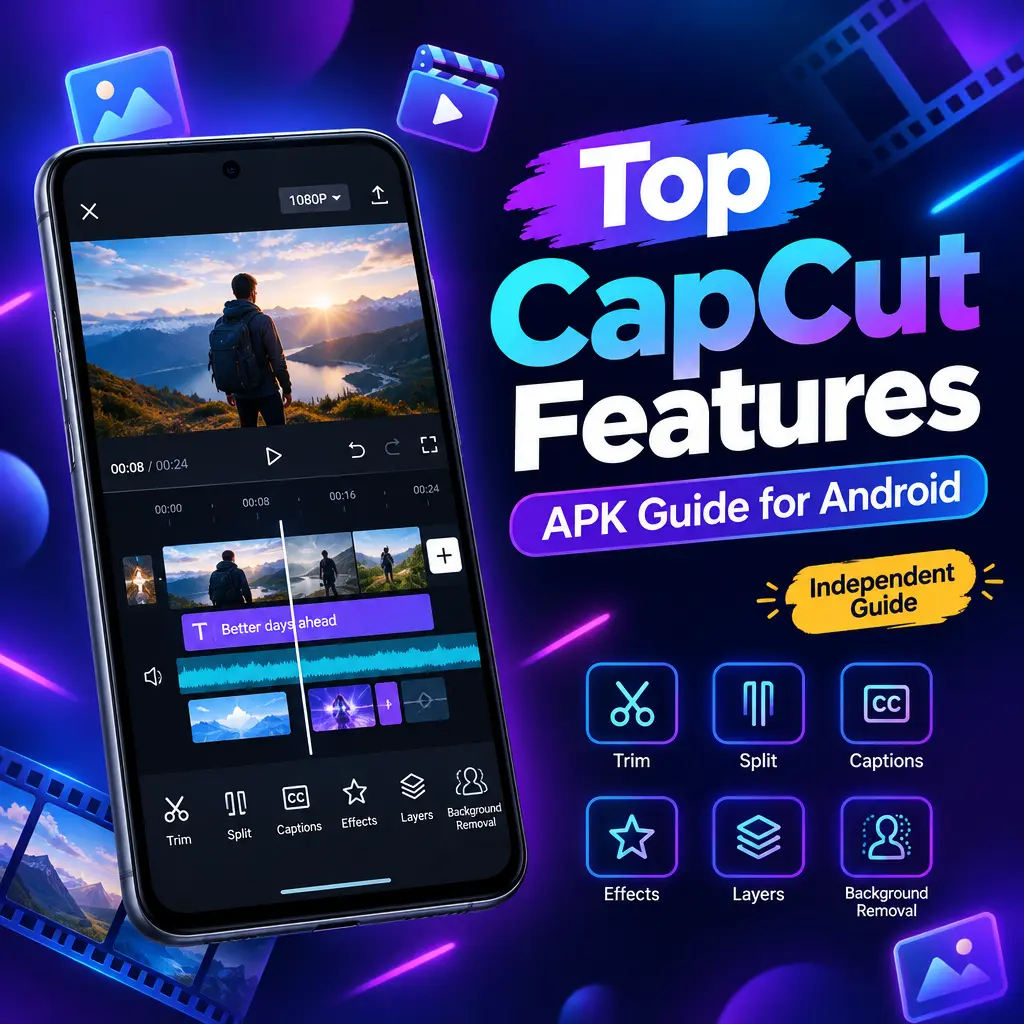
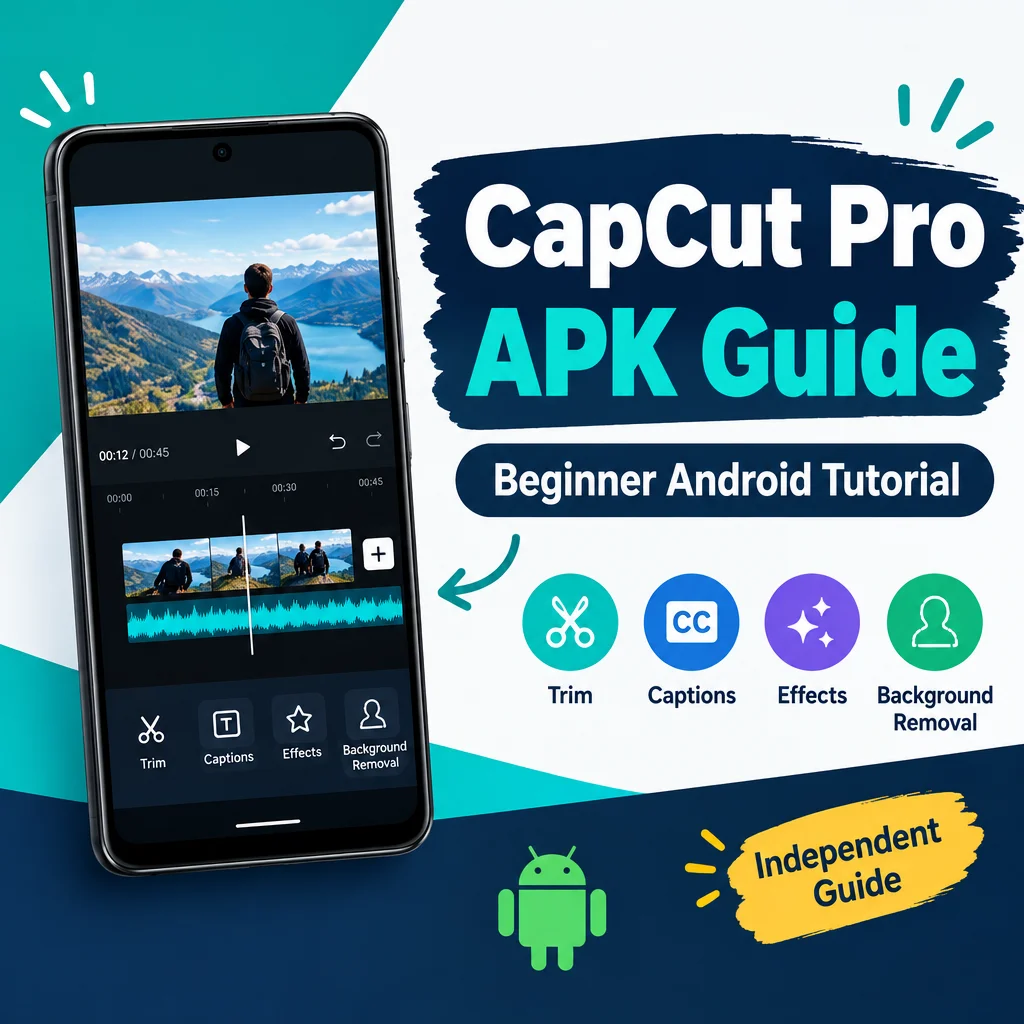
The timeline is the main working area. It shows your clips in order from left to right. You can tap a clip to edit it, drag it to change its position, or pinch the timeline to zoom in for more accurate cuts.
Basic Tools Every Beginner Should Learn
- Trim: Shorten your clips by removing unwanted parts at the start or end.
- Split: Cut one clip into two or more sections.
- Delete: Remove mistakes, pauses, or unnecessary footage.
- Speed: Slow down or speed up a clip for style or pacing.
- Text: Add titles, labels, subtitles, or callouts.
- Audio: Add music, voiceovers, sound effects, or adjust original sound.
- Transitions: Add movement between clips for a smoother flow.
Do not try to use every feature at once. A clean video with good cuts, readable text, and balanced audio is often better than a video overloaded with effects.
How to Make Your First Simple Video
- Choose a clear goal for your video, such as a tutorial, product showcase, travel clip, or social media post.
- Import only the clips you really need.
- Arrange the clips in the correct order.
- Trim each clip so the video moves quickly and keeps attention.
- Add text only where it helps the viewer understand the message.
- Use one or two transitions instead of applying a different one to every cut.
- Add background music at a lower volume so it does not overpower speech.
- Preview the full video before exporting.
For beginners, the best editing habit is to keep everything simple. Focus on the story first. Effects and transitions should support the video, not distract from it.
Using Captions, Effects, and Background Removal
CapCut includes editing capabilities such as captions, effects, filters, templates, overlays, multitrack editing, and background removal. Availability may depend on your platform, device, region, app version, and plan. Some tools may require account access or a paid membership in the official app.
Captions are useful for social media because many viewers watch videos without sound. You can add captions manually or use available caption tools if supported. After creating captions, always review them carefully because auto-generated text can make mistakes.
- Use captions for spoken videos, tutorials, and educational content.
- Use effects lightly to highlight important moments.
- Use background removal when you want to isolate a person or object, if the feature is available on your device and plan.
- Use overlays to add images, logos, reaction clips, or extra video layers.
Exporting Your Video
When your edit is complete, use the export option to save the video to your device or share it to a platform. Export options can vary depending on your device, platform, settings, and plan. Do not assume every device supports every resolution, frame rate, or feature. If your phone is older or low on storage, exporting large videos may take more time or may fail.
Before exporting, check your video from start to finish. Look for spelling mistakes, loud audio, awkward cuts, black screens, or missing clips. It is easier to fix these issues before saving the final video.
Beginner Tips for Better Results
- Record clips in good lighting before editing.
- Keep your camera steady for cleaner footage.
- Use short clips to maintain attention.
- Match text colors with your video style.
- Do not make captions too small.
- Lower background music when someone is speaking.
- Save your project before making major changes.
If you are editing for TikTok, Instagram Reels, YouTube Shorts, or similar platforms, vertical video is often the best format. For YouTube videos, business presentations, or wider screens, horizontal video may be more suitable.
Final Safety Reminder
Searching for “CapCut Pro APK” can lead to many results, but not all APK files are trustworthy. Be careful with websites that promise free Pro access, unlocked subscriptions, guaranteed no watermark, or advanced features without the proper membership. These claims should not be treated as reliable. For the safest experience, use official CapCut platforms and only access Pro features through the appropriate official membership when required.
CapCut can be a powerful beginner-friendly editor when used properly. Start with trimming, splitting, captions, audio, and simple transitions. As you gain confidence, explore multitrack editing, effects, templates, and background tools when available. With a clear plan and safe app practices, you can create clean, engaging videos without feeling overwhelmed.
Recommended For You